

How to sync your Tradovate account with Tradervana
By Tyler Branstiter · Updated August 30, 2026 · 3 min read
Connecting Tradovate pulls your full trade history into Tradervana and keeps new trades flowing in automatically — no CSV exports, no manual entry. Setup takes about a minute.
Before you start
- Broker sync is a Pro feature. On the free plan you can still import a Tradovate CSV by hand; auto-sync needs Pro.
- Know which Tradovate login you need. Connect the login you actually use to trade the accounts you want in Tradervana. For a prop firm (Apex, Lucid, Topstep, MyFundedFutures, etc.) that's the Tradovate login the firm gave you, not a separate personal Tradovate account.
Connect
- In the sidebar, open Broker Sync.
- In the Connect Tradovate card, optionally set a Label (how the connection shows in Tradervana) and a Start date (leave it blank to import everything).
- Pick the environment — see the note below on which one.
- Click Connect with Tradovate. You'll be sent to Tradovate's own site to log in and authorize access.
- Approve the request. Tradovate sends you back to Tradervana and the first sync starts right away.
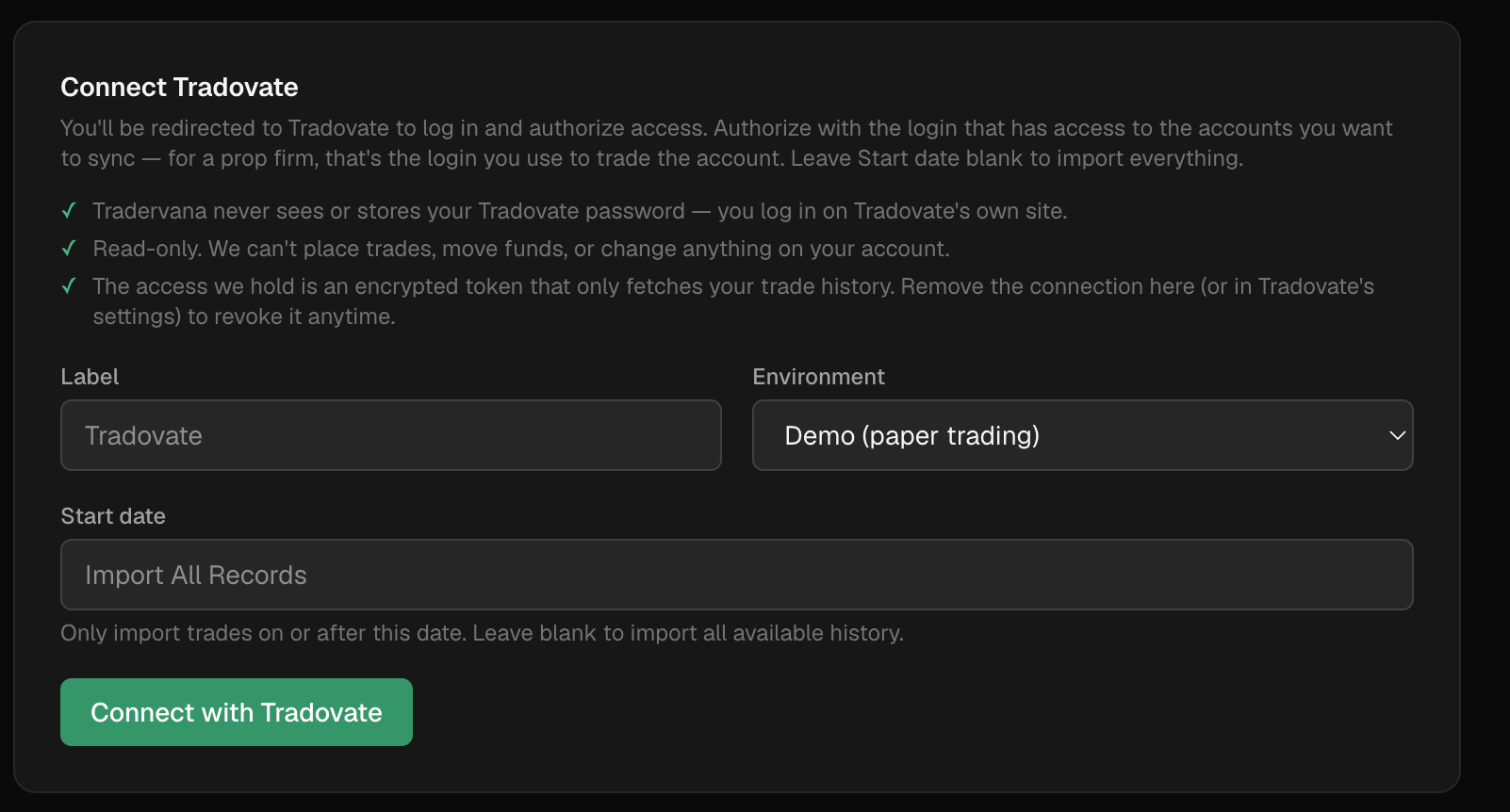
Prop-firm accounts use the Demo environment. Apex, Lucid, Topstep, MyFundedFutures and the rest run their evaluation and funded accounts on Tradovate's Demo (simulation) infrastructure, even though funded accounts are real money. Choose Demo for any prop-firm account. Use Live only for a direct, real-money Tradovate brokerage account.
What happens after you connect
The first sync is a full backfill, so it can take a few minutes if you have a long history or several accounts. You don't need to wait on the page — it keeps running in the background, and Tradervana continues where it left off on its own if a large backfill doesn't finish in one pass.
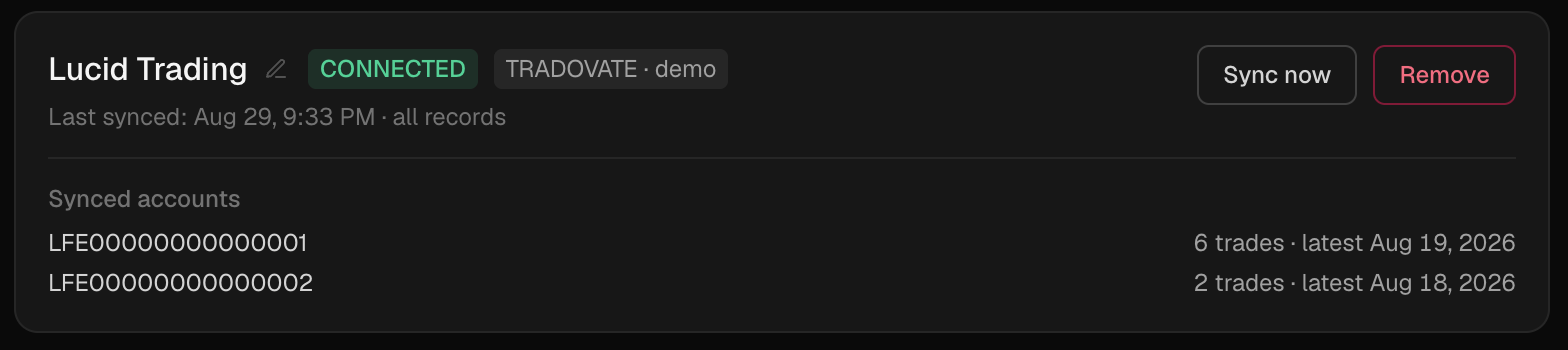
After that, syncs are incremental and run automatically as you use the app, with a daily catch-up as a backstop. You can also force one anytime with Sync now on the dashboard or the Broker Sync page.
Reconnecting
Tradovate access tokens expire periodically, especially on a connection that sits idle. When that happens the connection shows a Reconnect button and an "access expired" note. Click Reconnect and re-authorize on Tradovate — it re-links the same connection, so your already-synced trades, notes, and tags stay exactly where they are. Nothing re-imports or duplicates.
Only ever use the Reconnect button to fix a connection that stopped syncing. Adding a brand-new Tradovate connection instead just creates a duplicate that syncs the same accounts.
Multiple accounts
One Tradovate login covers every account it can see — you don't add a separate connection per prop-firm account. Once synced, use the account filter in the top-right of the dashboard and Trades pages to switch between them, and set each account's rules under Accounts.
What Tradervana can and can't do
- You log in on Tradovate's own site. Tradervana never sees or stores your Tradovate password.
- Access is read-only — it can fetch your trade history and nothing else. It can't place trades, move funds, or change any setting on your account.
- What's stored is an encrypted token. Remove the connection on the Broker Sync page (or from Tradovate's own authorized-apps settings) to revoke it at any time.
Troubleshooting
An account isn't showing up. Almost always the environment. If a prop-firm account is missing, make sure the connection is set to Demo. Remove the connection and reconnect with the right environment if you picked the wrong one.
Trades are missing or stop at a certain date. Open the connection and hit Sync now. If you set a Start date, history before that date was skipped by design — reconnect with a blank Start date to pull everything.
A prop-firm account disappeared after a reset or breach. When a firm removes an account, it drops off Tradovate's account list and Tradervana flags it on the Accounts page. Your trades from it stay in your history; classify the account there as passed, breached, or reset.
Prefer to import a file?
Every plan can import a Tradovate CSV — use Add trades → Import a CSV on the Trades page. Auto-sync just saves you doing it repeatedly.
Still stuck? Contact support with the connection's error message and we'll take a look.